What version 0.8.7 changes for tools, taxi letters, doors and saves, with a practical way to diagnose an outdated guide.
Start with the version, then the solution
Breathedge 2 entered Steam Early Access on August 31, 2026. The newest official patch notice retrieved for this guide is Hotfix 0.8.7, published September 4. That distinction matters when a walkthrough disagrees with your screen: a launch recording, an updated installation and the older public demo can show different behavior. Before spending another oxygen reserve repeating somebody else's route, check whether their instructions name a version and whether they actually cover the sequel.
Treat patch numbers as the first branch of troubleshooting. If an instruction depends on a crowbar dismantling a particular object, a letter sitting in one pile or a quest requiring one specific battery, it can be outdated even when the author originally described their experience accurately. Record the objective in your current journal, the item you are using and what happens when you interact. Those three observations are more useful than deciding that the whole mission is broken.
Use the Twister where old footage uses a crowbar
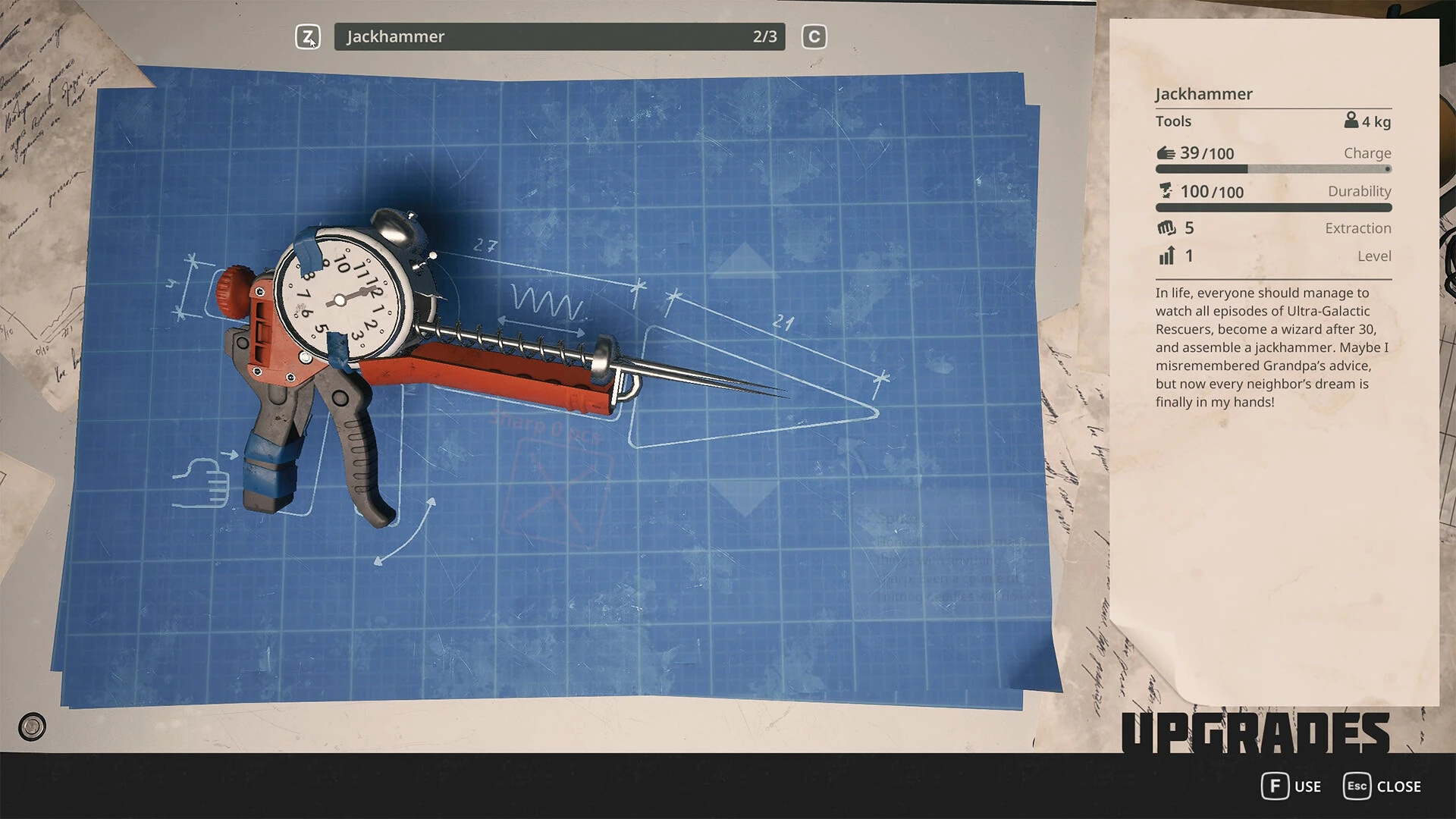
Hotfix 0.8.7 changes the permitted dismantling tool for the train crate, lamp shades, robots and doors: use the Twister for unscrewing these objects. The developer explicitly says the crowbar previously worked where it should not have. Repeatedly striking the same object is therefore a poor diagnostic. Stop after establishing that the expected interaction is absent, inspect the current interaction prompt and return with the appropriate tool.
This is also a useful inventory lesson. A tool's visual resemblance to a general-purpose solution does not establish that it is valid for every object. Before an outing, work backward from the task. If the job involves removing a fixed component, carry the tool the current interaction requires. If the route contains several different interactions, leave enough inventory flexibility to retrieve the missing tool rather than converting the entire outing into a resource haul. That advice is a planning method, not a claim about an undocumented inventory upgrade.
Taxi letters moved deliberately
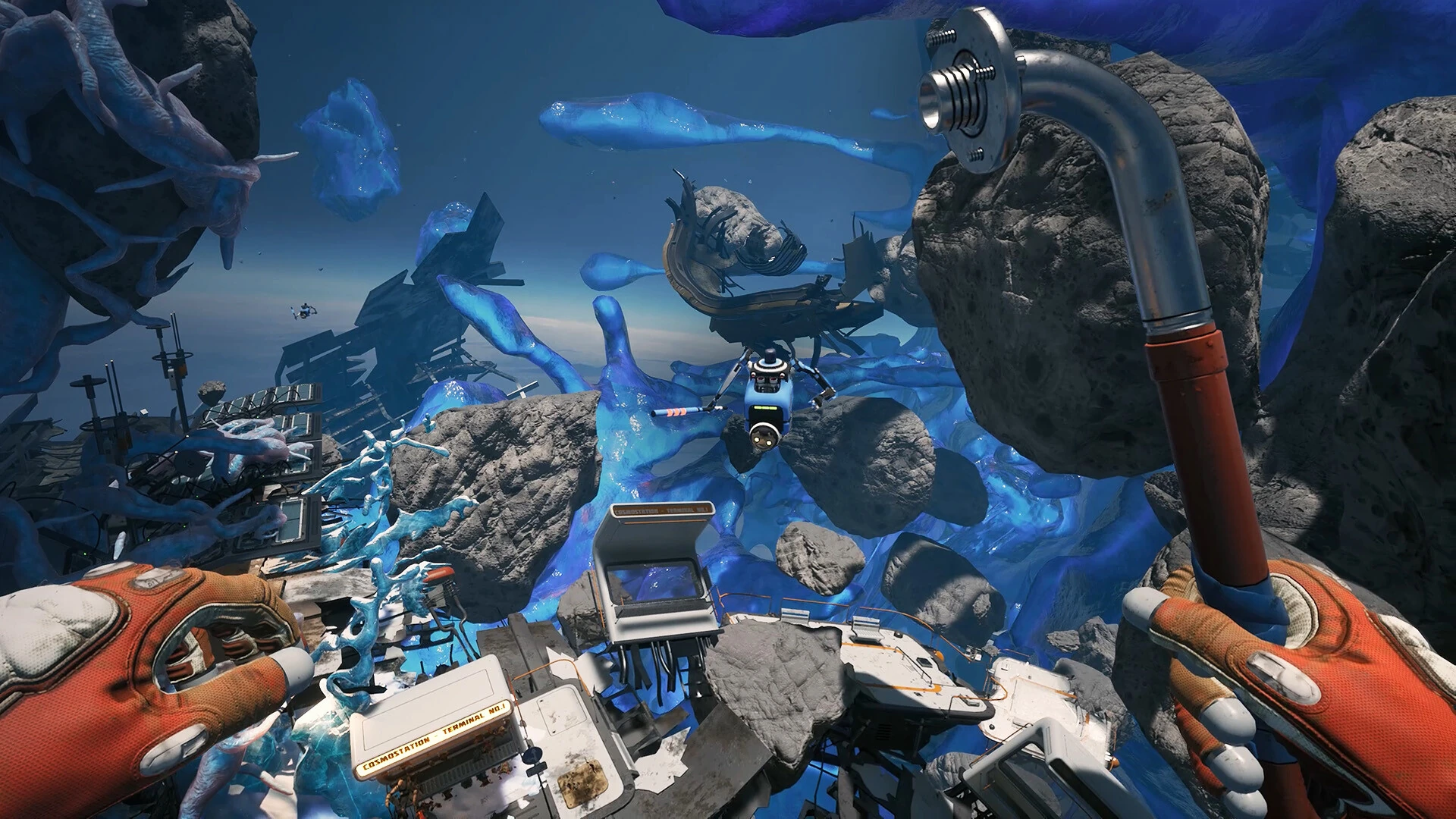
The taxi-letter clarification in 0.8.7 is unusually direct: the alphabet pieces are distributed within a 20-meter radius rather than collected in the demo's single pile. Searching only the remembered pile will not resolve the task. Establish the relevant search area from the objective, then divide it into visible landmarks. Sweep one sector at a time, including changes in height, and return your view to a familiar reference between sectors. In free space, a flat circle on the screen can conceal objects above or below you.
Avoid treating a guide's screenshot as a guaranteed current spawn diagram unless its author has verified the same build. The official note gives a radius, not a full coordinate list or a universal arrangement. When one piece remains, revisit the boundaries between sectors and any area obscured by larger objects. That is a more controlled search than widening the radius indefinitely. If your evidence still suggests a missing piece, a report that identifies which pieces you already found and what area you checked gives the developer something concrete to investigate.
Saving around the shuttle
A save made at the very end of the shuttle flight could leave the character stuck when loaded. Version 0.8.7 prevents saving until the flight scene has finished and the character has fully exited it. If the save option is temporarily unavailable during that transition, wait for control to return; the restriction is part of the fix. Do not interpret every temporarily disabled action during a scene as a new progression failure.
The same patch addresses a depot yoke problem that could interfere with saving and loading. These are specific fixes, not proof that every save from every earlier build is safe. The developers also mention reports of characters falling through the world after an update, but say the submitted saves they checked loaded correctly on their machines. The responsible next step for that symptom is preserving the affected save and reporting the circumstances, rather than promising that a reinstall or a new save will recover progress.
Read earlier hotfixes before restarting
Version 0.8.6 fixed several progression problems involving ice and a battery. In particular, the hatch objective accepts a battery found elsewhere; the quest should not force you to break the originally indicated ice after you already have a suitable battery. Version 0.8.5 corrected the speaker objective's marker toward the oxygen terminal and repaired a Zarya antenna interaction that could leave the character stuck. These are reasons to update and reassess the current objective before throwing away a run.
A practical verification sequence is short: finish any Steam update, launch the intended game rather than the demo, load the affected save, read the current quest stage and repeat only the interaction directly relevant to that stage. If it still fails, write down the last successful step. A concise reproduction such as 'battery already collected elsewhere, hatch stage active, interaction does not advance' is much more useful than a long account of every earlier errand.
Keep the guide date attached to the advice
Early Access changes both balance and expectations. Bookmarking this article should not replace checking later notes when a new symptom appears. Use the linked official feed to compare dates, then look for the exact affected system. Search results can retain an older description long after the underlying game changes. A newer publication date alone is also insufficient if the article is merely repeating a demo walkthrough.
The reliable habit is to connect each fix to its scope: 0.8.7 for the listed dismantling interactions and taxi-letter clarification; 0.8.6 for the specific survival adjustment and battery behavior; 0.8.5 for the earlier quest and physics fixes. When you explain the issue to another player, include that scope. It helps them solve the same problem without turning one successful workaround into a supposed rule for every quest in the game.
A useful triage order for launch-week problems
Sort the symptom into one of four groups before changing settings: the game cannot launch, the controls or display are wrong, a specific interaction fails, or a save loads into an unusable state. The order matters because each group calls for different evidence. An absent cursor does not establish that a quest is broken, and an unresponsive object does not establish that files are missing. Start with the smallest explanation supported by what you can observe.
For a launch failure, record any error message and compare the machine with the current store requirements. For controls, identify the connected devices and the screen where input fails. For an interaction, record the active quest stage and tool. For a load problem, keep the affected state and note the last successful save. This simple classification keeps a help request readable and reduces the temptation to apply every fix from an unrelated discussion. It also lets you stop once the relevant test has answered the question instead of spending the rest of the session troubleshooting systems that work.
Input devices: two similar-looking problems with different clues
The 0.8.6 controller fix concerns the game becoming stuck in gamepad mode and preventing a return to keyboard input. The cursor fix concerns menus when a wheel, yoke or pedals are connected. If you have such peripherals, mention them even if you are not actively using them for Breathedge 2. Their presence is part of the documented symptom. Test the current build with your normal setup first, then change only one peripheral condition if you want to compare behavior.
Make the comparison observable: can you move the cursor, select a menu entry and return to normal gameplay input? Record which of those fails. If all you write is 'controller problem,' somebody else may assume a completely different issue such as an unfamiliar button assignment. Do not reset every binding or remove unrelated software before establishing the actual failure. A focused description also prevents an AZERTY keyboard report being mistaken for the fixed gamepad-mode issue. These symptoms can all affect control, but the notes do not claim they share one cause or one remedy.
Ultrawide resolution: verify the applied result
Hotfix 0.8.7 fixes the case where selecting 5120 by 1440 reverted to 3840 by 1080. If you use that display mode, check the value after applying it and again when returning to the settings screen. A menu selection and an applied mode are not necessarily the same observation. If the problem persists, report both the requested and displayed values so the failure can be distinguished from an unsupported monitor mode or another display issue.
Keep performance and resolution diagnosis separate. The fact that a mode now applies does not guarantee a specific frame rate at that resolution. Test a familiar scene after the change and assess whether control and readability remain comfortable. If you change several graphics options at once, you may improve performance without learning which setting mattered. A smaller comparison gives a clearer result. This guide does not claim a benchmark, a recommended ultrawide preset or a universal frame-rate target because the official hotfix provides none of those measurements.
Ice objectives: confirm the stage instead of adding more damage
The 0.8.6 notes address two cases where removing ice did not correctly advance an objective: the 10g antenna when ice was removed very quickly, and the station door. If the visible obstruction is gone but the task still appears to request it, inspect the stage after updating. Continuing to attack an already cleared surface is not a meaningful test of whether the quest system recognized the completed action.
For a useful reproduction, establish whether the save was already beyond the removal step before the update or whether the failure occurs during a fresh interaction on the current build. That distinction can matter when a fix changes the trigger but an existing state still needs investigation. Do not overwrite a helpful earlier save merely to create a fresh test unless you have preserved the progress you want. If the stage remains blocked, include the object name, how the ice was removed and what the journal says afterward. Those details connect the visible scene with the progression state.
When verifying files is a reasonable next step
Steam's official support recommends file verification for symptoms such as missing content or crashes. In the Library, open the game's Properties, choose Installed Files and run the integrity check. Let it finish before testing again. This is a platform-level check of the installation, not a documented Breathedge 2 quest repair. Use it when the symptom suggests missing or damaged installed content, rather than as a ritual response to every confusing objective.
After verification, repeat the smallest action that previously failed and record whether anything changed. If the symptom is identical, do not run the same check repeatedly without a new reason. Move to the game's report tool with the result included. Avoid unofficial replacement executables, random configuration downloads or instructions to delete broad folders as a first troubleshooting step. They complicate the state you are trying to diagnose. A clean, ordinary installation and a precise report are easier to support than a game modified by several unrelated fix packages whose effects are unknown.
Cloud conflicts are not the same as a broken game save
Steam lists Cloud support for Breathedge 2. Valve's Cloud guidance explains that a conflict can occur when local and cloud files differ and Steam cannot choose automatically. Compare the displayed times with when and where you last played before selecting a copy. Do not assume that 'cloud' always means newest or that a recently modified file necessarily contains the progress you wanted, especially after testing an older state.
This is a separate diagnostic branch from the shuttle loading bug. A conflict asks which data should be retained; a game-state bug concerns how retained data behaves when loaded. Keep that distinction in a support request. Mention whether Steam showed a conflict before the game opened and what choice you made. If you are unsure which version contains the desired progress, pause before selecting an overwrite. Solving the wrong problem can remove the evidence needed to solve the right one, whereas a brief check of your recent play history can clarify the choice.
Know what remains unconfirmed
The retrieved notices do not provide a complete list of every remaining bug, nor do they explicitly close the AZERTY issue mentioned on September 1. Absence from a later note is not proof of a fix. Similarly, a player reporting a successful load does not establish universal save compatibility. Keep current observations attached to their device, build and circumstances when you share them.
If a later patch appears after this guide's review date, use its precise wording to update the relevant part of your plan. A balance adjustment may change trip preparation without changing a quest; a physics fix may affect object handling without changing recipes. Reading at that level gives you actionable information while avoiding unnecessary restarts. The useful outcome is a working next session or a reproducible report, not an exhaustive theory about the game's internal code.
Sources & verification
This article combines cited facts with practical editorial advice. Follow the version and uncertainty notes before applying an older route.