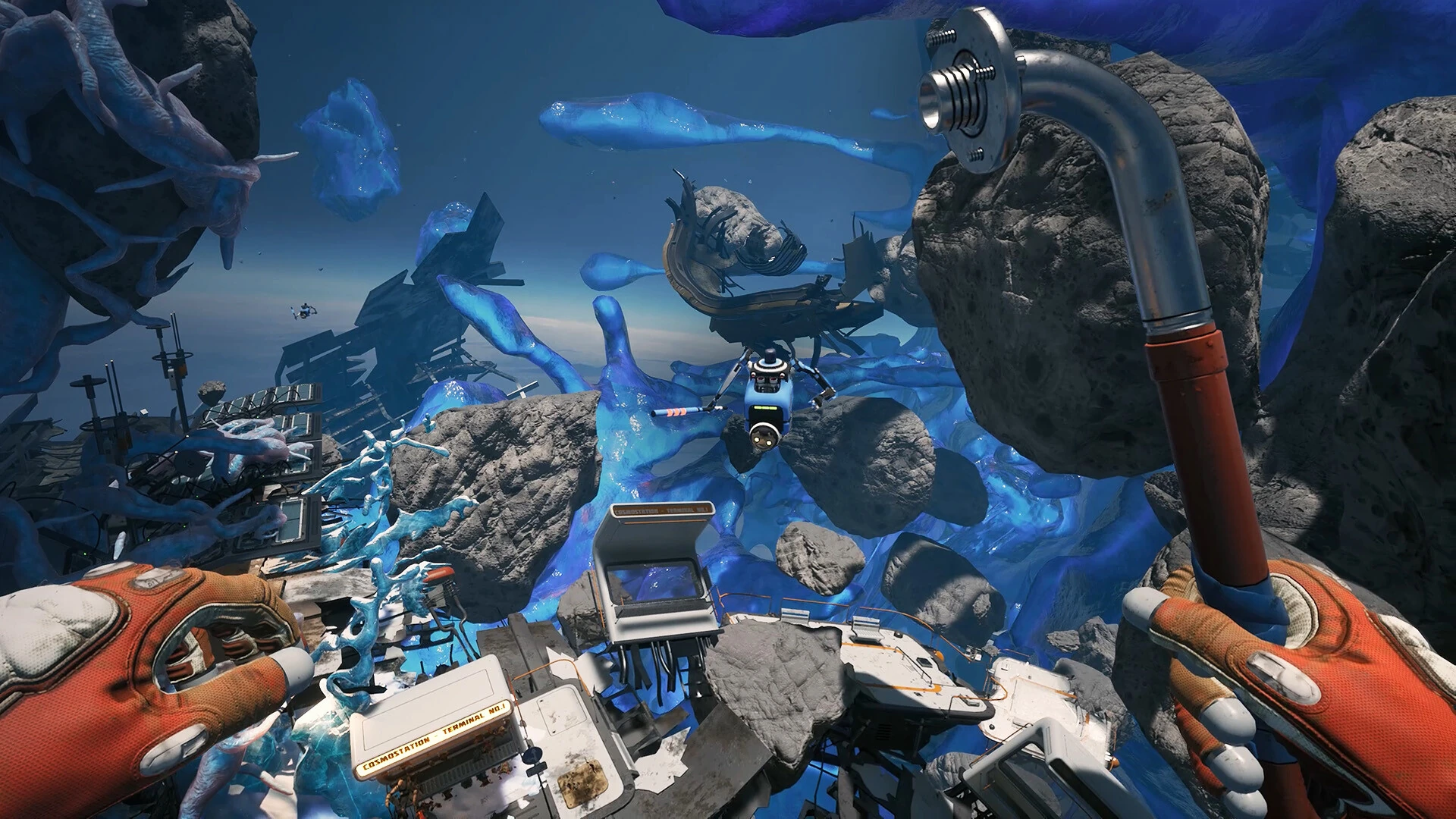
Compare CPU, GPU, memory and operating-system requirements, then build a realistic first-session test.
Read the specification as a starting point
The official PC requirements tell you which hardware the developers list for Breathedge 2. They do not attach a target resolution, graphics preset or frame rate to either tier. That distinction matters when deciding whether to buy, when choosing a laptop for travel, and when judging a poor first session. A computer can resemble the recommended specification and still encounter a software problem; a slower machine can launch without delivering the experience you want.
Write down your own expectation before changing anything: the display resolution you normally use, whether you play at a desk or on a television, and whether a steady image matters more to you than fine detail. This turns a vague question about whether the game runs into a test you can actually evaluate. Do not buy a hardware upgrade solely because a store page names a faster component. Establish what is limiting your existing setup first.
The published hardware tiers
Epic lists a 64-bit Windows 10 or 11 system, Intel Core i5-8400 or AMD Ryzen 5 2600, 12 GB RAM, GTX 1660 6 GB or RX 5500 XT 6 GB, DirectX 11 and 15 GB available storage as the minimum. Its recommended tier moves to Windows 11, i7-13700 or Ryzen 7 7700X, 16 GB RAM and RTX 3070 8 GB or RX 6700 XT 8 GB; DirectX and storage figures stay the same.
Keep system memory and graphics memory in separate columns. A laptop advertised with plenty of RAM does not thereby have the graphics processor named in the requirement. Similarly, a brand name alone tells you little: record the complete CPU and GPU model, including laptop or integrated status when applicable. If you cannot identify the hardware, ask the person who maintains the machine for its specification instead of guessing from its purchase date.
Identify the machine without buying a scanning utility
Windows includes System Information, which Microsoft documents as a way to inspect hardware and the software environment. Search for msinfo32 and open the result. Use the System Summary to collect the operating-system identity, processor and installed memory. Copy the relevant entries into a short note rather than sending an entire machine report to a public comment section. If this is a work or family computer managed by someone else, ask its maintainer before changing system configuration.
For graphics and DirectX information, Microsoft's DirectX Diagnostic Tool is another built-in option. Search for dxdiag, inspect its System and display information, and use Save All Information only if you need a report for support. Read the report before sharing it, since a diagnostic export contains more than the handful of specifications required for a purchase comparison.
An example of a useful note is: Windows version; complete processor model; installed RAM; complete graphics model; dedicated graphics memory if identified; game drive and free space; intended screen resolution. Leave a field marked unknown when you cannot verify it. Unknown is actionable: it tells you what to inspect next. A guessed model can send both purchasing and troubleshooting advice down the wrong path.
Compare CPU and GPU as separate decisions
Start with exact matches, then identify the comparisons that need more evidence. If your component is the same model as one listed, you can say it matches that part of the published tier. If it is a different model, a larger model number alone does not establish equivalence across generations, brands or mobile products. Use a trustworthy hardware comparison for that specific pair rather than turning the requirement into a ranking of all computers.
Keep the CPU and GPU decisions separate. A machine with a newer processor and an older graphics device is not automatically recommended-spec overall. Equally, a strong graphics card does not tell you whether system memory or the operating system meets the listing. The purpose of the table is to expose a mismatch, not average several unrelated components into a single reassuring score.
Do not ask another player only whether their computer runs the game. Ask which build, resolution and expectations they are describing. Their answer might mean that it launches, that it plays comfortably at their chosen settings, or that it sustains a measured target through a demanding route. Those are different claims. A useful comparison includes enough context that you can decide whether their experience resembles what you want from yours.
Account for laptops and two graphics devices
Some laptops have both integrated and discrete graphics. AMD's switchable-graphics documentation explains this arrangement and recommends compatible laptop-manufacturer drivers for the devices. Seeing two names in a diagnostic report is therefore not by itself an error. Record both names and the laptop model before trying to remove or disable anything.
For a purchase check, establish which graphics hardware the machine actually contains. For a performance problem, the next question is which device the application is using. Those are related but distinct questions. Avoid rewriting a driver setup merely because one screen shows the integrated adapter; you need to understand the laptop's design and application assignment first.
If you use a dock or external screen, include that setup in your baseline. A test made on the internal panel and a later session on another display may differ in resolution, connection and device behavior. This guide does not assert a particular wiring arrangement for your laptop. Your manufacturer's documentation is the right place for that detail. Keep the setup simple for the first comparison, then test the arrangement you normally intend to use before deciding that the machine meets your own comfort target.
Treat available storage as a continuing check
The store's space requirement is a published installation figure, not permission to fill the drive to its last remaining byte. Check the destination selected by the launcher rather than the total capacity printed on the computer's sales page. A machine with several drives can have plenty of room overall while the chosen library location is full.
Do not free space by deleting unfamiliar game or Windows folders. Review your own downloads, captures and other files you recognize, and use normal application uninstall controls for software you choose to remove. If another person owns the machine, leave their files alone. You are trying to create a stable installation, not trade a launch problem for missing personal data.
After the download, note whether the launcher reports completion or another pending operation. If there is a disk or installation error, resolve that condition before benchmarking the game. An incomplete installation is not a meaningful test of your processor or graphics card. If space becomes a recurring obstacle after updates, record the message and the affected drive so that platform support can distinguish the storage problem from a gameplay crash.
Keep operating-system support and game requirements distinct
A game can list an operating-system version while the operating-system vendor has a separate support lifecycle. Microsoft states that ordinary Windows 10 support ended on October 14, 2025. The Breathedge 2 minimum listing still includes Windows 10. These statements address different questions and should not be collapsed into either a guarantee of ongoing Windows support or a claim that the game cannot run.
For a new machine purchase, consider the computer's supported operating system and maintenance plan alongside the game requirement. For a computer you already own, do not perform a major operating-system migration solely as the first response to one game failing. Establish the symptom and check compatibility, backups and the manufacturer's guidance before making a change with effects far beyond the game.
If you ask for help, provide the actual Windows version rather than saying only PC. Also say whether the problem occurs on a managed device, where you may not control updates or permissions. This context lets the reader propose steps you can realistically take. It avoids instructions that assume you can replace drivers or alter system settings when those choices belong to a device administrator.
Turn the comparison into one of three outcomes
Outcome one is a clear published mismatch: for example, the available memory is below the listed figure or the machine is not the documented platform. In that case, do not treat repeated file verification as a way to make the hardware requirement disappear. Decide whether you can use another suitable machine or whether you should defer the purchase.
Outcome two is a plausible match with an untested experience. This is where most different-but-similar hardware comparisons land. Keep the uncertainty explicit and prioritize a real test at your intended display setup where a legitimate option exists. Do not convert a stranger's short clip into a guaranteed frame rate for your system.
Outcome three is a machine that matches your own tested needs. Record the setup that produced that result and use it as a reference when something later changes. This does not mean you must stop adjusting preferences; it means you have a working baseline to restore. If the experience deteriorates after a patch or hardware change, comparing against that record is much easier than remembering a vague impression that everything used to be fine.
Avoid an upgrade that solves the wrong problem
Before spending money, identify what evidence points toward the proposed component. If the game cannot locate a required installed file, a faster graphics card does not address that symptom. If only a particular saved session fails, more memory is not a documented repair. If the resolution keeps reverting, check the relevant hotfix and display configuration first.
Ask a seller or adviser to explain the expected benefit in terms of your actual use: the resolution, game build and limitation you observed. A recommendation that cannot connect the purchase to those details is too broad to evaluate. Include costs beyond the component itself, such as whether the computer supports the replacement and who will install it; consult the machine's manufacturer for those compatibility decisions.
When no hardware change is justified by evidence, a software or support investigation is a productive outcome. You have not failed to optimize the machine by refusing to buy something prematurely. The goal is to reach a playable, understandable setup with a clear record of what works, so that future changes can be evaluated against facts rather than another round of guesses.
Build a useful first-run record
Before launching, note the game version, graphics-driver version and display setup. For the first test, choose an ordinary session without a video export, large download or other demanding job running alongside it. This is a comparison baseline, not a claim that closing applications repairs a particular Breathedge 2 bug.
Start by checking three different situations: reaching the menu, moving through a playable area, and opening the interfaces you use frequently. Describe what happens in each. A launch failure, uneven movement and an input pause are different problems and deserve different reports. If you later ask for help, these observations are much more useful than saying the game is badly optimized.
Use the same short route when comparing settings. If one attempt occurs in a quiet interior and the next while you turn toward a complex exterior, you have changed two variables. Record the result after each adjustment, and return to your starting setup when a change makes no visible difference.
Choose the next step from the symptom
If the game cannot reach its menu, follow the launch troubleshooting guide before attempting performance tuning. If it plays but looks uneven, work through the display and graphics guide. If only one saved session fails, preserve that session and investigate the save rather than replacing the entire installation immediately.
Allow room in your decision for Early Access changes. A test today describes today's build on your computer; it cannot certify future chapters or promise a particular frame rate after later updates. Keep the hardware record and your short test route so you can repeat the same comparison after a meaningful patch. That gives you evidence for a purchase or upgrade decision without treating marketing tiers as a benchmark.
A completed comparison should answer the next question
Suppose your note confirms the published memory amount and operating system but lists an unfamiliar graphics device. The next task is to identify that device accurately, not to lower every in-game setting before installation. Suppose instead that every listed component matches and the game reaches its menu, but movement is uncomfortable on your external monitor. The next task is a controlled display and performance comparison, not another requirements lookup. Suppose the launcher reports an incomplete download. Finish that installation problem first. These examples show why the requirements check ends with an action rather than a simplistic yes-or-no badge: the same store table can lead different players to different, useful next steps.
Sources & verification
This article combines cited facts with practical editorial advice. Follow the version and uncertainty notes before applying an older route.